

Begin with a picture in mind
Describe a new image or edit an existing one. Choose an available model and the aspect ratio for the work you are making.
Images, video, audio, 3D and websites. Move from a conversation to a creative result, and keep the files with the work.
 NATURAL FORMS
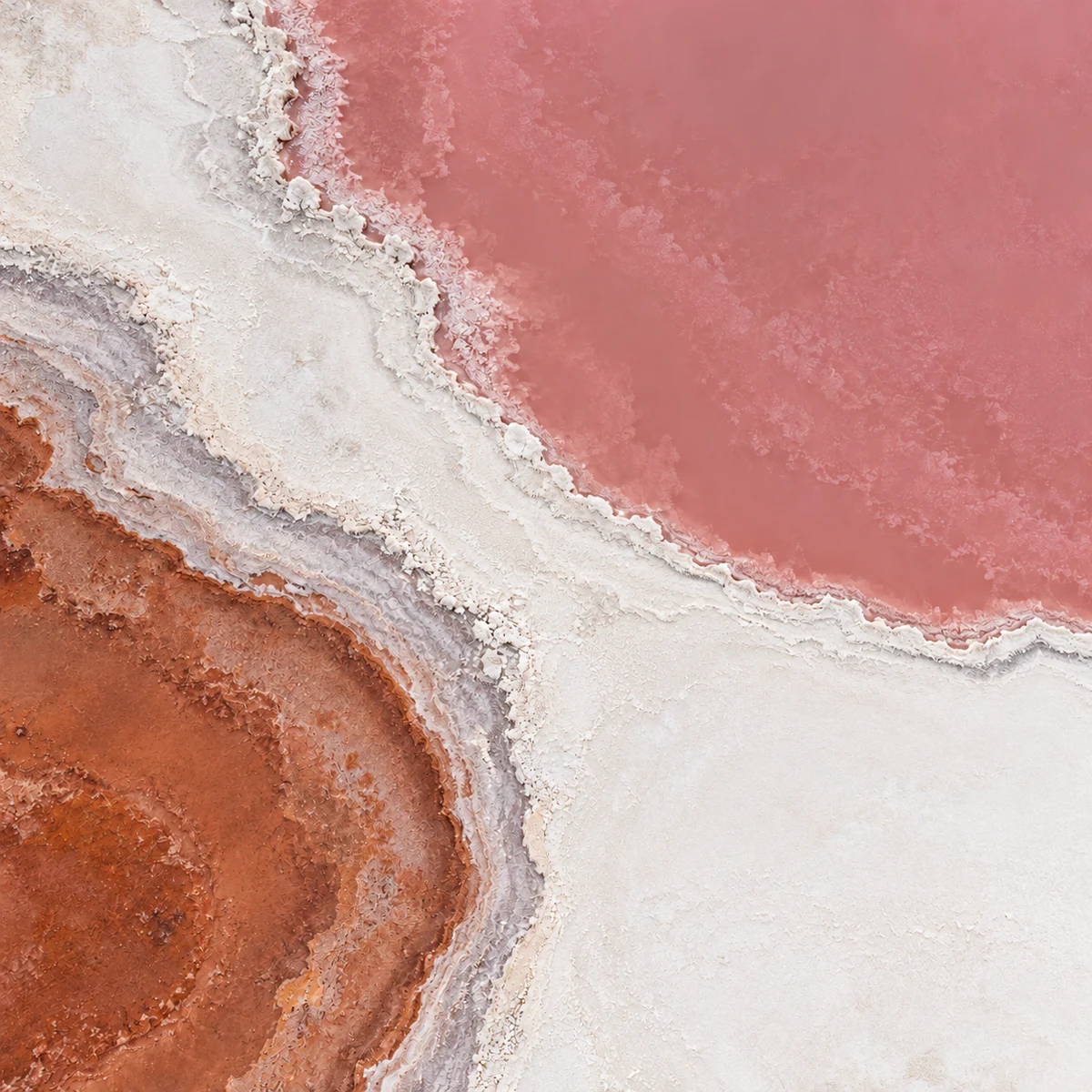
Compare the rose-coloured salt shoreline with the warm light and shadows of a dune.
A nature-led image collection. Mineral pink, warm sand and soft shadows. Let the textures lead, with a quiet layout and generous space.

Illustrative workflow using supplied still images and current interface details. Review each tool, model and credit estimate before generating.
Describe a new image or edit an existing one. Choose an available model and the aspect ratio for the work you are making.
Create video from a prompt, an image or supported reference frames. Available controls depend on the tool and model you choose.
Switch to audio or 3D in the same workspace. Each tool shows its available models, input requirements and generation settings.
Find the right form
A creative workspace for different kinds of output, with tools that make sense for each medium.


The practical steps
Adapt the same art-publication brief to each tool. These are example directions, not promises that every model produces the same result.
An expressive portrait for an art publication. Apricot light, violet accents, a clean editorial composition.
Review the image and composition. Aspect ratio and resolution depend on the selected model.
Read the guideModel examples come from the configured tools; availability, region and credit quotes are checked in the conversation. The artwork above is illustrative and is not attributed to these models.
Inside the workspace
Review saved creations in Library, open a larger preview and download the result. Use an image as the starting point for another creation, or bring it into a website draft.

See how it works
Select image, video, audio or 3D, then choose an available tool.
Write a prompt, add references where supported and choose a model. Review the credit quote before generating.
Follow the creation card in the conversation, then open the result beside it. Saved work is also available in Library.
No. Model availability, reference inputs, size and duration depend on the selected tool, your region and configured services. The creation card shows the options available to you.
After you choose the settings, the creation card requests a credit quote and shows the reserved amount before generating. When actual cost is available, unused reserved credits are returned; otherwise the quoted price applies.
Make the next move
Bring a prompt or a reference. Find the form that fits.
